


Library Management System
We’re excited to introduce QueryBase, our new web-based model browsing platform designed to make finding, exploring, and understanding complex system models faster and more intuitive than ever before.
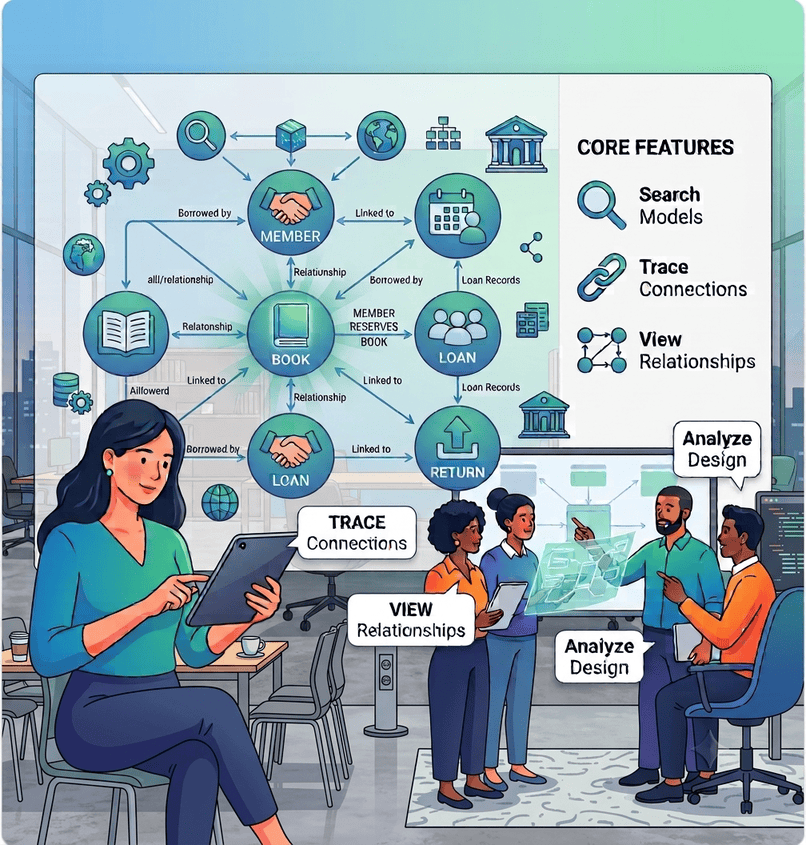
This case study uses a real-world scenario – a Library Management System – to showcase how QueryBase transforms model navigation and analysis, especially with its powerful element querying capability.
The Scenario
A Comprehensive Library Management System
Our subject organization is developing a Library Management System encompassing three active projects:
- Book Inventory & Catalog Search
- Book Lending & Return Process
- Member Registration & Account Management
Intuitive Browsing and In-Depth Analysis
Step 1: Project Overview
The dashboard provides an immediate overview of the active projects: Book Inventory & Catalog Search, Book Lending & Return Process, and Member Registration & Account Management.
Zoe’s immediate task is to understand the “Borrow Book” process, which falls under the Book Lending & Return Process project.
Step 2: Diagram Navigation
Clicking the project opens the Diagram List. Zoe instantly sees the project’s contents: a use case diagram, two class diagrams, five sequence diagrams, and two activity diagrams.
Since she wants to see the Interaction details for “Borrow Book,” she clicks on the corresponding Sequence Diagram link: “Borrow Book.”
Step 3: Element Specification and Details
The Sequence Diagram opens, providing a clear visual representation of the interactions. Zoe is interested in the business logic handled by the system’s core component.
She clicks on the LifeLine: “LoanController”.
Instantly, the specification pane opens at the bottom of the screen. This feature allows Zoe to read the element’s description, properties, tagged values, and other technical metadata without leaving the diagram view. This is critical for quick, contextual analysis.
Step 4: Context Switching via Breadcrumbs
Now, Zoe needs to review the overall Class Model that defines the Borrow Book objects. She uses the breadcrumb navigation at the top of the screen to quickly return to the Project Dashboard. This fast, clear path ensures seamless context switching between different views.
From the dashboard, she is interested in the Model-View-Controller (MVC) Architecture for the lending components, so she clicks on the Class Diagram link “Borrow or Return MVC Architecture.”
The Class Diagram opens, allowing her to review the structural design.
Unlocking Knowledge with Powerful Querying
(QueryBase's Core Value)
Zoe’s next task is to review the use case for Member Account Creation. The problem? She can’t recall which of the three active projects the use case belongs to. Manually opening each project and sifting through diagrams would be time-consuming.
This is where the power of QueryBase’s search feature shines.
Step 5: Initiating a Targeted Search
Zoe clicks the magnifier icon (🔎) at the top right to open the Query Interface. This dedicated interface allows her to set precise conditions across the entire repository (Workspace, Projects, Diagrams, and Model Elements).
Zoe defines her search condition to be simple and powerful: list all elements where the Name property contains the text ‘Account’.
She clicks Search. The initial result is comprehensive, listing every model element across all projects with “Account” in its name.
Step 6: Refining and Focusing Results
The initial result is a great starting point, but Zoe only cares about Use Cases.
She easily refines the result by using the Element Type filter. She unchecks everything except ‘Use Case’.
The search results are now precisely filtered down to four relevant use cases. This targeted result immediately reveals the location and name of the element she was looking for!
Step 7: Instant Navigation to the Element
Zoe is looking for the “Create Member Account” use case, so she clicks on the link: ‘Create Member Account : Use Case’.
QueryBase navigates her directly to the Use Case Diagram in the Member Registration & Account Management project. The target use case, ‘Create Member Account’, is highlighted, and the specification pane is open, ready for review.
Step 8: Tracing Relationships with Sub-Diagrams
Finally, Zoe wants to review the implementation flow for this use case. She switches to the “Diagrams” tab within the specification pane. This view lists all the sub-diagrams (like sequence or activity diagrams) attached to the ‘Create Member Account’ use case.
She clicks the link for the sequence diagram “Create Member Account”.
In a single click, Zoe is instantly brought to the Sequence Diagram, enabling her to study the main and alternative flows of the use case implementation.
Conclusion
Knowledge at Your Fingertips
With QueryBase, Zoe moved seamlessly from high-level project exploration to detailed element analysis, and finally, used the powerful querying feature to instantly locate a forgotten element and trace its implementation across multiple diagrams.
QueryBase transforms your modeling software from a repository into an interactive knowledge platform, ensuring your team spends less time searching and more time understanding and delivering value.