


QueryBase Hierarchical Queries provide complete control over what model data is extracted from your Visual Paradigm Cloud workspace. By defining targeted scope conditions and selecting exact property fields, you can generate lightweight, tailor-made JSON payloads for downstream processing.
The 3-Step Extraction Workflow
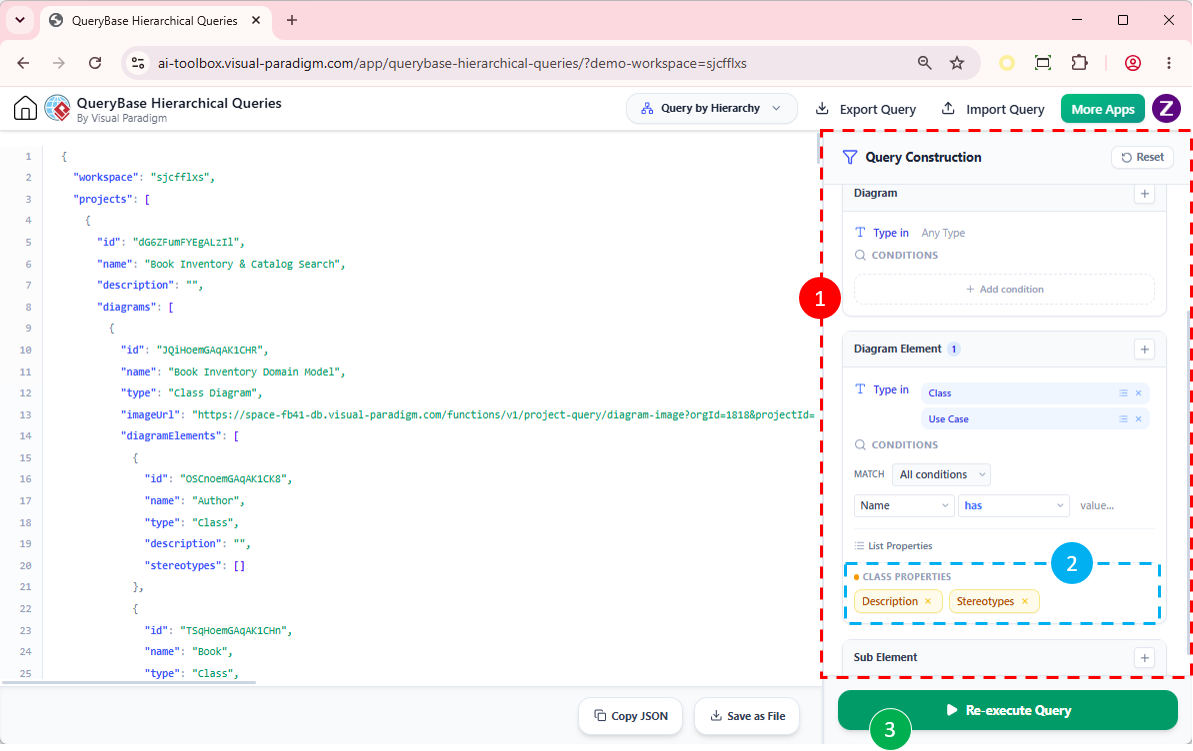
- Define Scope Conditions: Filter targeted Projects, Diagrams, and Elements.
- Customize Included Properties: Pick exact attributes (e.g., Name, ID, Stereotype, Custom Tags) to feature in the payload.
- Export Query and Download JSON: Preview live JSON and download or copy the payload.
1. Configuring Scope Conditions
Defining a precise query scope ensures that your JSON payload contains only the relevant model assets. QueryBase allows multi-tier scope filtering across three levels:Project Scope
Select specific projects or repositories from your cloud workspace. You can target a single active project or query across multiple related enterprise projects simultaneously.Diagram Scope
Narrow the scope to specific diagram types (e.g., only Use Case Diagrams, BPMN Business Processes, or Entity Relationship Diagrams) or select individual diagrams by name.Element Scope & Filters
Filter diagram shapes using logical conditions:- Element Type: Restrict extraction to specific shapes like
Actor,Class,Task, orDatabase Table. - Stereotype: Filter elements carrying designated stereotypes (e.g.,
«Primary»or«RESTful»). - Name Conditions: Apply string matchers like Contains, Starts With, or exact keyword matches.
- Run Query Preview: Click Execute Query to view the structured JSON hierarchy directly in the built-in web editor with full code highlighting.
- Verify Payload: Inspect the live output tree to ensure all required fields and element nodes are accurately represented.
- Export Payload:
- Download JSON File: Save the payload as a
.jsonfile for immediate use in external toolchains. - Copy to Clipboard: Instantly copy raw JSON formatted for quick pasting into code editors or REST client tools.
- Download JSON File: Save the payload as a
Best Practices for Optimized JSON Extractions
- Exclude Unused Properties: Stripping out spatial properties (like position coordinates) when only data definitions are needed can reduce file sizes by up to 70%.
- Save Query Configurations: Reuse your scope and property filter rules across future cloud project runs to maintain consistent JSON schema structures. Click on Export Query at the top of the page to output the query.