


Chained model queries in QueryBase allow you to mine interconnected project models by linking sequential filters together into a continuous pipeline. This guide walks you through constructing a complete 3-step chained query using a real-world Use Case diagram scenario: isolating an Actor, traversing its Association relationships, and extracting all connected Use Cases.
Example Scenario Goal
In your Visual Paradigm Cloud workspace, you have a large enterprise project containing numerous diagrams. Your goal is to generate a clean JSON list of every Use Case connected specifically to the “Member” Actor, without manually reviewing every diagram or extracting unrelated elements.
Pipeline Strategy:
Filter Actor ("Member") →
Traverse Connected Associations →
Retrieve Connected Use Cases
Step-by-Step Query Construction
Step 1: Base Element Filtering (Seed Selection)
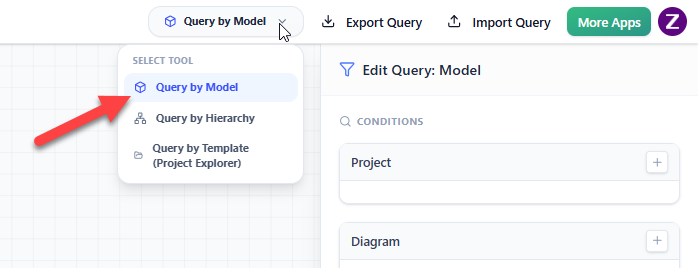
The first query in the chain establishes the starting point (seed data) by filtering for the target element.- Open QueryBase from your workspace and navigate to Query by Model in the top menu.
- Set the Element Type filter to
Actorin the first query.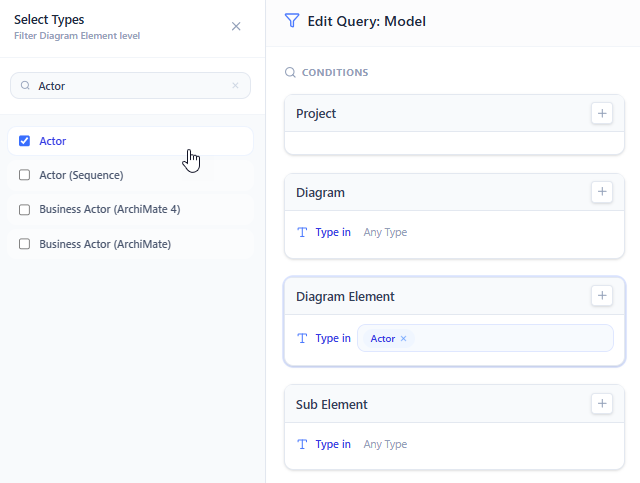
- Add a condition:
Name Contains "Customer".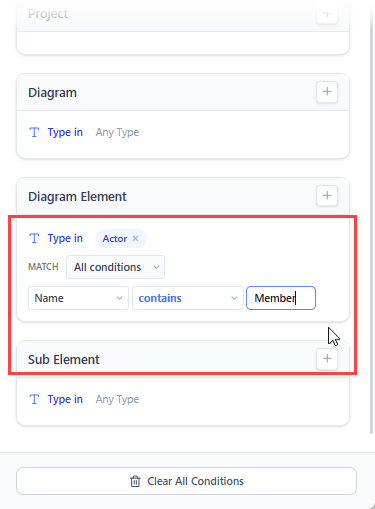
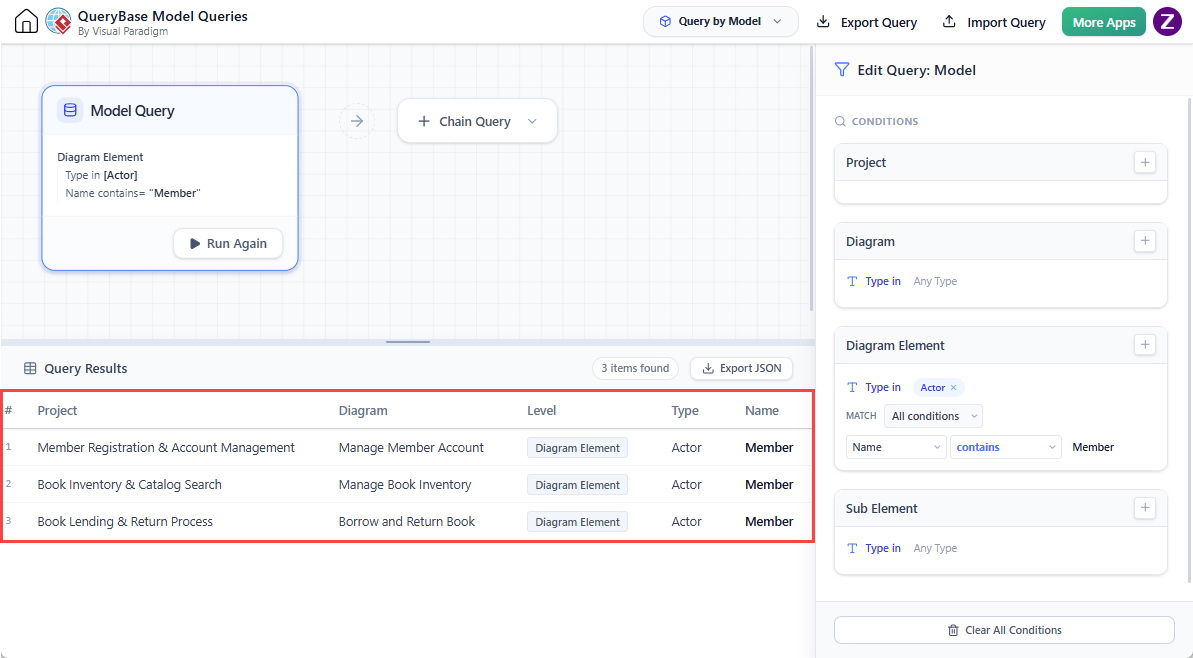
Step 2: Relationship Traversal (Path Following)
The second step follows the relationship lines attached to the seed elements identified in Step 1.- Click + Chain Query to append Query 2 to your pipeline.
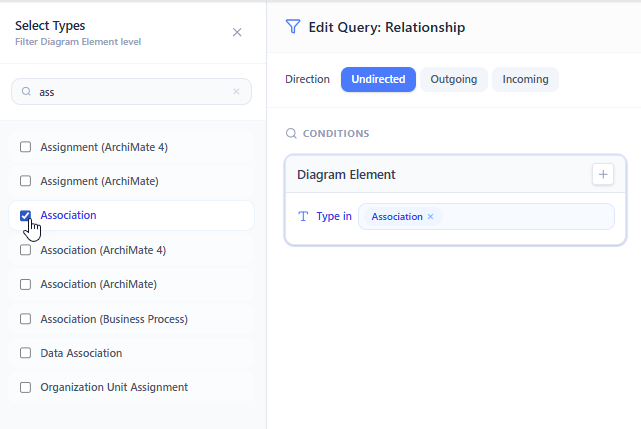
- Select Relationship to be the type of link.
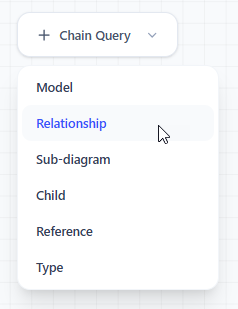
- Select Association to be the type of diagram element to query.
Step 3: Target Model Retrieval (Destination Extraction)
The third step extracts the target shapes attached to the far end of the relationships gathered in Step 2.- Click + Chain Query to append Query 3.
- Select Model to be the type of link.
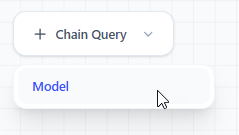
- Select Use Case to be the type of diagram element to query.
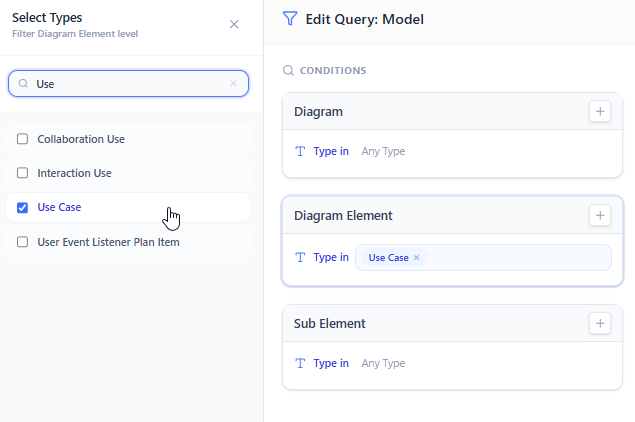
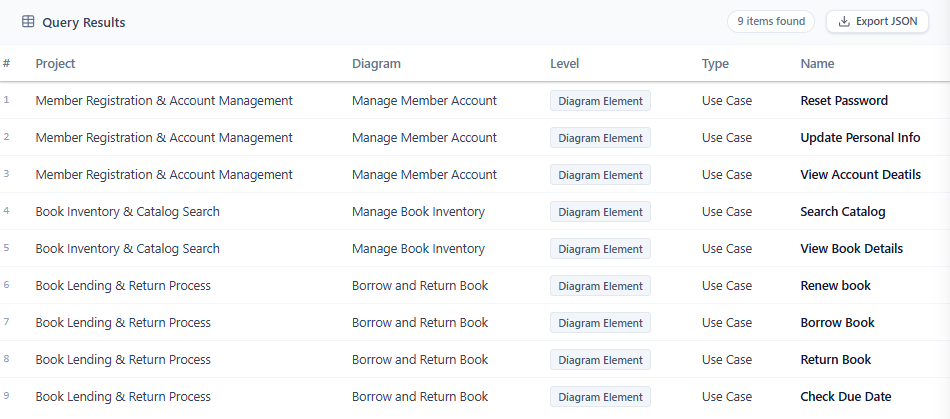
Executing the Chain & Inspecting Results
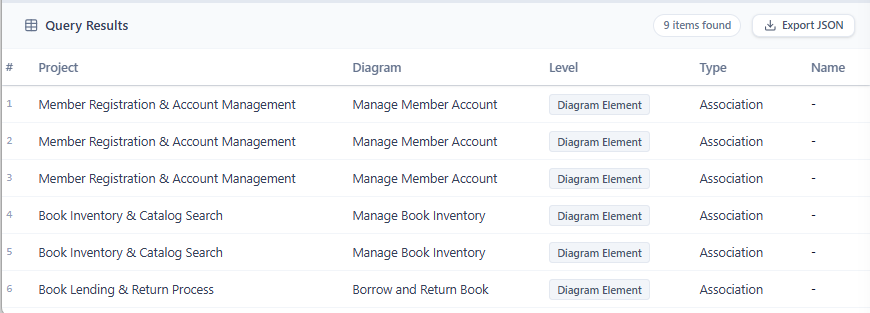
Once all three query steps are linked in the editor, you can export JSON for your result.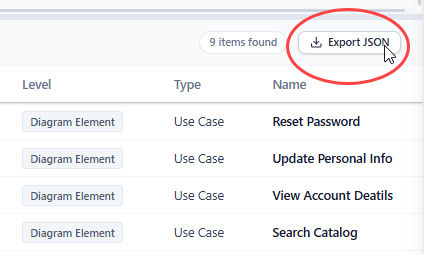
Key Takeaways & Next Steps
- Chains Flow Sequentially: The output of Step N becomes the direct evaluation context for Step N+1.
- Filter at Each Stage: Narrow down types or properties at each step to prevent broad or noisy graph results.
- Export Anywhere: Save your chain configuration for repeated executions or export the JSON output for downstream processing.